SafeAssign is a service that allows us to compare a student's submitted work against a set of sources. This set of sources used by SafeAssign consists of institutional document files (documents submitted to SafeAssign at each institution), the global reference database (a collection of documents voluntarily provided by students at client institutions of Blackboard), and articles and publications from journals and the internet.
The result obtained after processing through SafeAssign is a series of marks on the student's original file showing the various sources where the same content appears in the document, links to those sources, and an originality percentage. The percentage indicates the amount of text in the work that may not be original.
First, we will enable the use of SafeAssign for the assignment where we want to use it. To do this, click Enable SafeAssign in the assignment settings panel (under Additional Tools) and select the options you consider necessary.
We can allow the student to view the originality report of their submissions. We can also prevent submissions from being added to the institution's document database (useful in some cases, for example, in assignments that are reviewed multiple times, so that non-final versions are not incorporated into the sources and later cause false positives when comparing a final submission with an intermediate version).
Save to record your settings.
Evaluating with SafeAssign
While the work is being evaluated, an icon with a clock will appear in the Originality column, which will be replaced by a green checkmark once the evaluation is complete.
By clicking on the attempt, you can view the originality report. Once available, you can view the similarity report on that same icon.
It is important to review SafeAssign's results to avoid false positives (for example, citations from other sources that are not properly formatted, or matches with an earlier version of the same work in courses where the assignment is cumulative).
We can enable SafeAssign even if students have already started submitting. In that case, only submissions made after activation will be reviewed. For those who have already submitted, we can force the submission from Books and Tools > SafeAssign and upload the file manually.
SafeAssign only supports file types that can be converted to plain text, such as the following: DOCX, DOC, PPT, PPTX, PDF, TXT, ODT, RTF, HTML, and HTM. It does not support spreadsheets.
Remember that what SafeAssign indicates with its scores is the likelihood that a phrase from the document and one from a source are identical and that this fact is not a coincidence.
To evaluate the scores and limit the number of assignments to be reviewed by the instructor, we can use the following guidelines:
- If the score is below 15%, the document is not considered plagiarism; it typically includes some citation or phrase from a source, but no more.
- If the score is between 15% and 40%, the document may be plagiarism and part of the text is paraphrased from sources. Documents in this group should be reviewed carefully.
- If the score is above 40%, the document has a high likelihood of being plagiarism, contains much material from sources, and should be reviewed.
To view the originality report, click on Originality reports in the grading bar of the flexible grader. You will see a summary of the analysis performed by SafeAssign and a link to open the full report, which you can print.
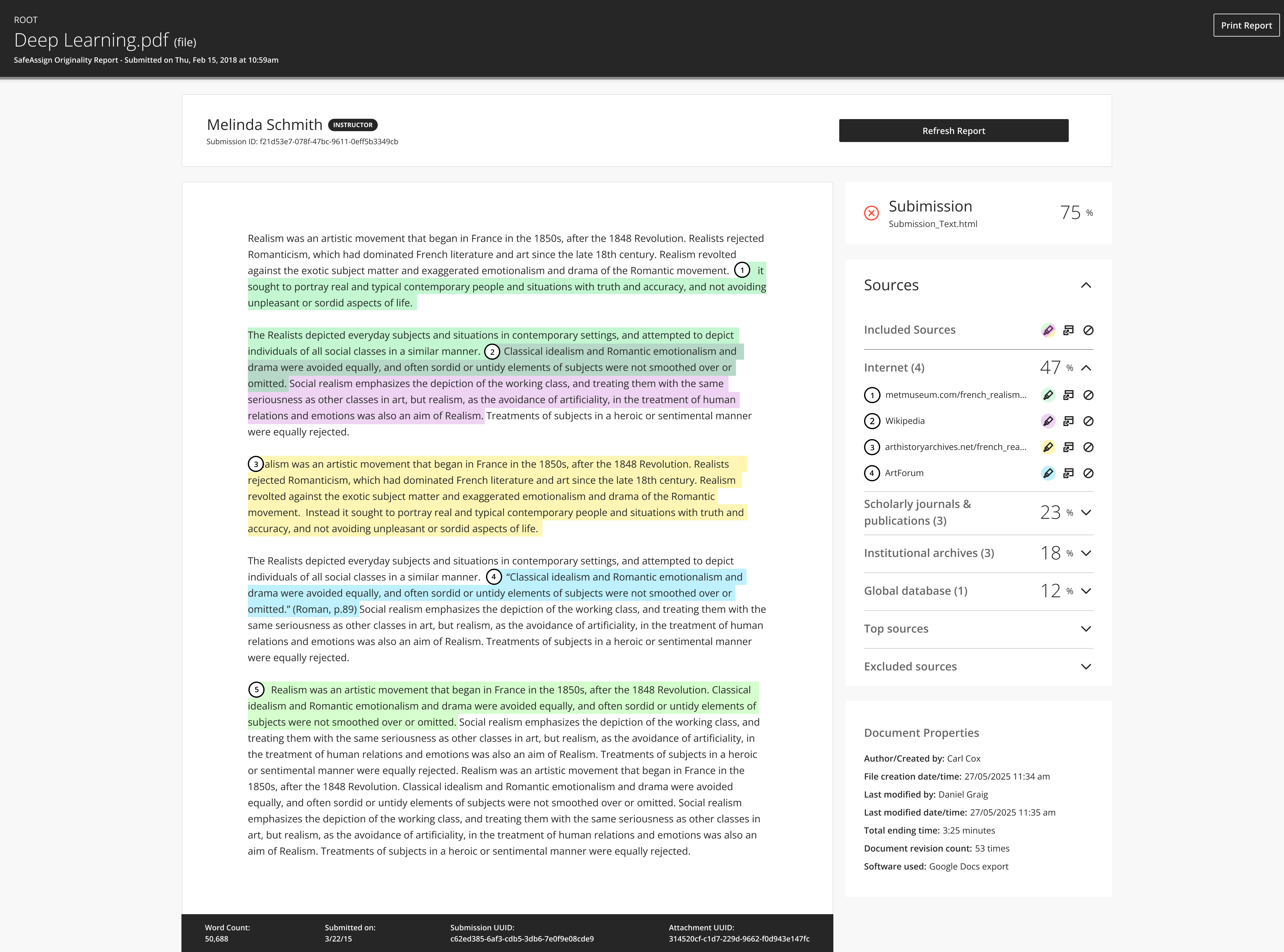
In the report, each source will be identified with a color, and you can toggle these sources on and off by clicking the icons on the right-hand bar.
Comments
0 comments
Please sign in to leave a comment.