In some cases, DUO authenticator does not prompt for login via your DUO/LMS connection. You must change your options in DUO to allow a different authentication method.
Option 1:
Push Troubleshooting
You may need to enable Duo Push notifications.
To enable Duo Push notifications:
- Press and hold on the Duo Mobile app icon and then select App info.
- On the following Duo Mobile app information screen, tap Notifications. Toggle All Duo Mobile notifications to on.
- If you are logging in to a Duo-protected application, but you aren't receiving an expected Duo Push authentication request, try closing Duo Mobile and reopening it. Duo Mobile checks for pending push requests whenever it's opened. If this doesn't fix it, see the Duo Knowledge Base for additional Android troubleshooting steps (https://help.duo.com/s/article/2050) .
Option 2:
DUO Settings
Within the DUO app you should see a gear icon or settings. From there, you should be able to change the DUO settings, please try other DUO settings. Many users have success with the texting option that can be enabled in DUO, which allows you to stay on the login screen. If you're still having issues, please touch base with the university helpdesk. Thank you! See below:
To change any Duo settings, you must first authorize your identity by clicking on the corresponding button of your preferred method.
To set a default authentication method, select it from the list and then click the “Save” button.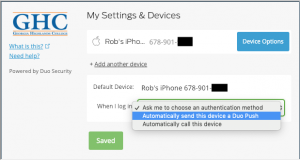
Comments
0 comments
Please sign in to leave a comment.