When you click the "Launch LockDown Browser" button, your web browser will ask for permission to open the LockDown Browser application on your computer. This article explains why this permissions dialog appears and how to grant access. It also highlights the option to remember your choice in several browsers, which can prevent the dialog from appearing again in the future.
Summary: When you click the "Launch LockDown Browser" button, your browser will ask for permission to open the LockDown Browser application on your computer, with the dialog varying by browser. Some browsers allow you to select a "remember my choice" option to prevent the dialog from appearing again.
When you click on the "Launch LockDown Browser" button, whatever browser you are using will initially ask you permission to open the LockDown Browser application installed on your computer. The dialog will be slightly different, depending on the browser you are using, but in each case you must grant permission.
Several browsers permit you to select a "remember my choice" option, which will prevent the dialog from appearing again. We recommend you choose this option.
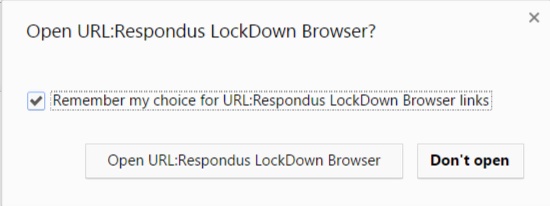
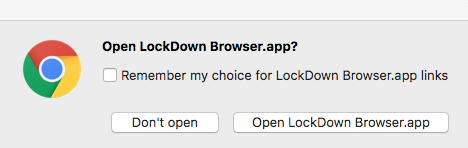
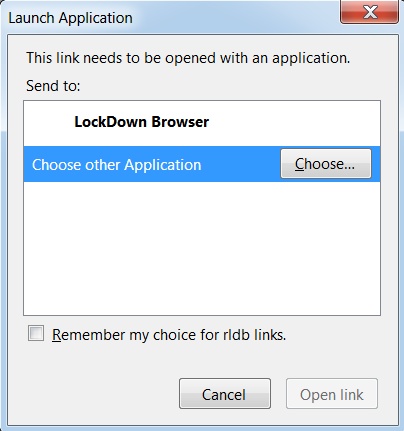
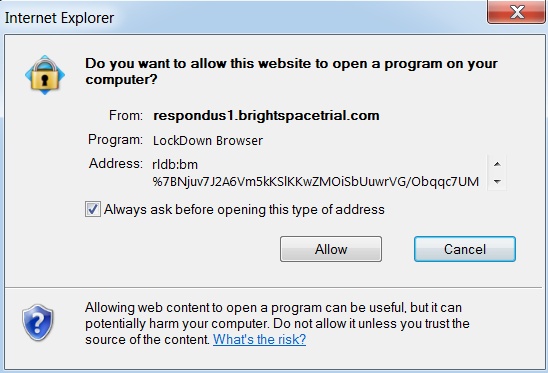
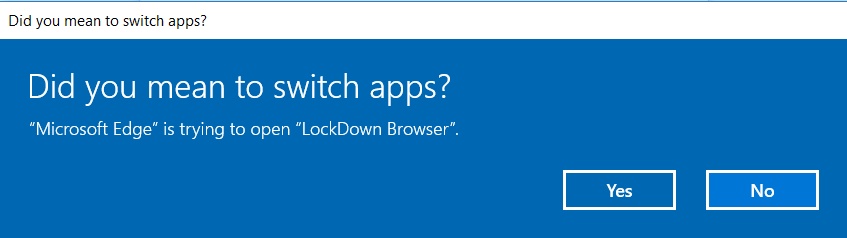
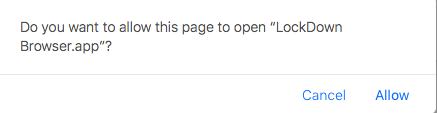
Below are some examples of the various dialogs that you might see.
Google Chrome (Windows):
Google Chrome (Mac):
Firefox:
Internet Explorer:
Edge:
Safari:
Original source: Permissions Dialog Appears | Respondus-Source-ID: 4409595604251 | Source-Updated: 2021-12-17T22:23:24Z
Comments
0 comments
Please sign in to leave a comment.