This article explains why LockDown Browser cannot be used on systems running virtual machine software like VMWare or VirtualBox and offers solutions to resolve related warnings. It helps you understand how to identify and remove virtual machine drivers, manage antivirus software conflicts, and suggests alternative devices for taking exams to ensure academic integrity.
Summary: LockDown Browser detects virtual machine software and will not run on systems with VM host applications, thin apps, emulators, or virtualization components to maintain exam integrity. Virtual machine device drivers or antivirus software sandboxing can trigger this warning, and removing VM drivers or using a different device may resolve the issue.
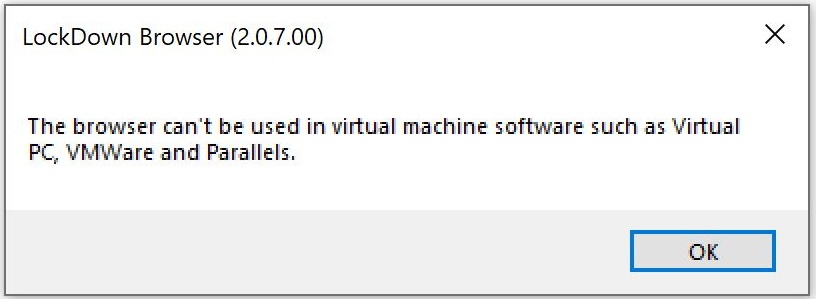
To maintain the academic integrity of an exam, students are not permitted to run LockDown Browser when a virtual machine is detected on the system. This includes VM host applications (VMWare, VirtualBox, etc), thin apps (VMWare ThinApp, Microsoft App-v, etc), Windows Emulators (Linux-WINE, CodeWeavers CrossOver, etc) or other virtualization ("Virtual Hard Drives" or "vHDs", "Virtual Displays" or "Virtual Desktops").
Anti-virus software can sometimes result in this type of error when running small "sandbox" VMs. Shutting down the anti-virus software temporarily while you use LockDown Browser may help.
The other possible cause of the VM warning are leftover virtual machine device drivers from a previous installation of a VM host app or a physical computer image created from a VM image. We suggest reviewing Windows Control Panel-Device Manager and remove any VM drivers, allowing Windows to restore the default device driver.
If the deadline for an exam is near, you may want to consider locating another computer, Mac or Windows, with LockDown Browser. There is also LockDown Browser for iPad, if allowed by the instructor.
Original source: I receive a warning: The browser cant be used in virtual machine software such as Virtual PC, VMWare and Parallels. | Respondus-Source-ID: 4409604116123 | Source-Updated: 2022-06-01T16:04:08Z
Comments
0 comments
Please sign in to leave a comment.