This article helps you troubleshoot the "We are unable to detect a microphone with your computer" error in LockDown Browser. It provides step-by-step instructions for both Windows and Mac users to check if their microphone is detected and enabled by the operating system. If the microphone is not detected, the article suggests using a USB headset or webcam with a microphone to resolve the issue.
Summary: The error message indicates that LockDown Browser is not detecting a microphone on your computer, which may be due to the operating system not recognizing any input devices. Connecting a USB headset or webcam with a microphone can resolve this issue if no microphone is detected.
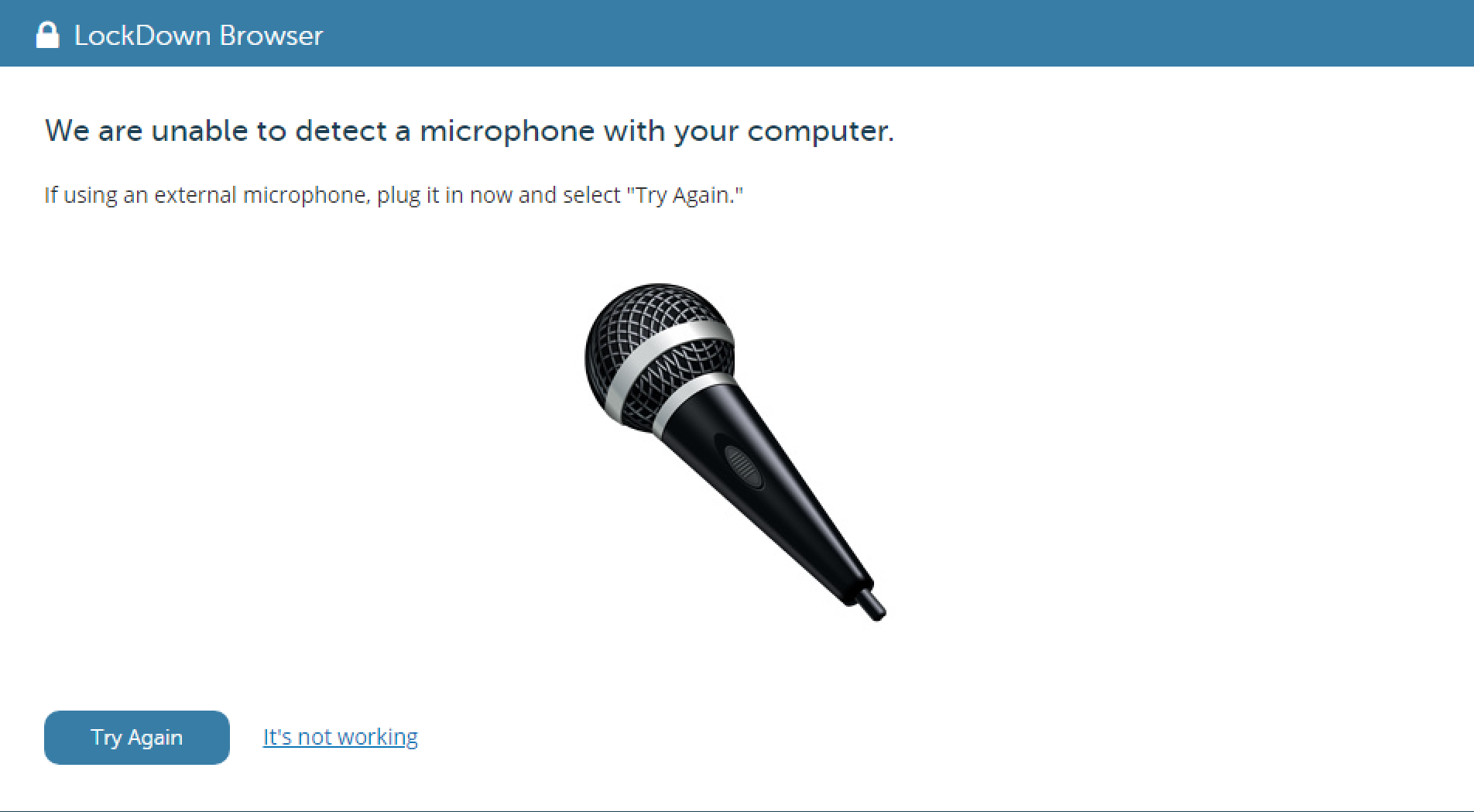
If you see the above error message, this indicates that your microphone is not being detected by LockDown Browser. To troubleshoot this problem on a Windows computer, please do the following:
1) In your Windows Search Window, type "sound" and then open the Sound Settings.
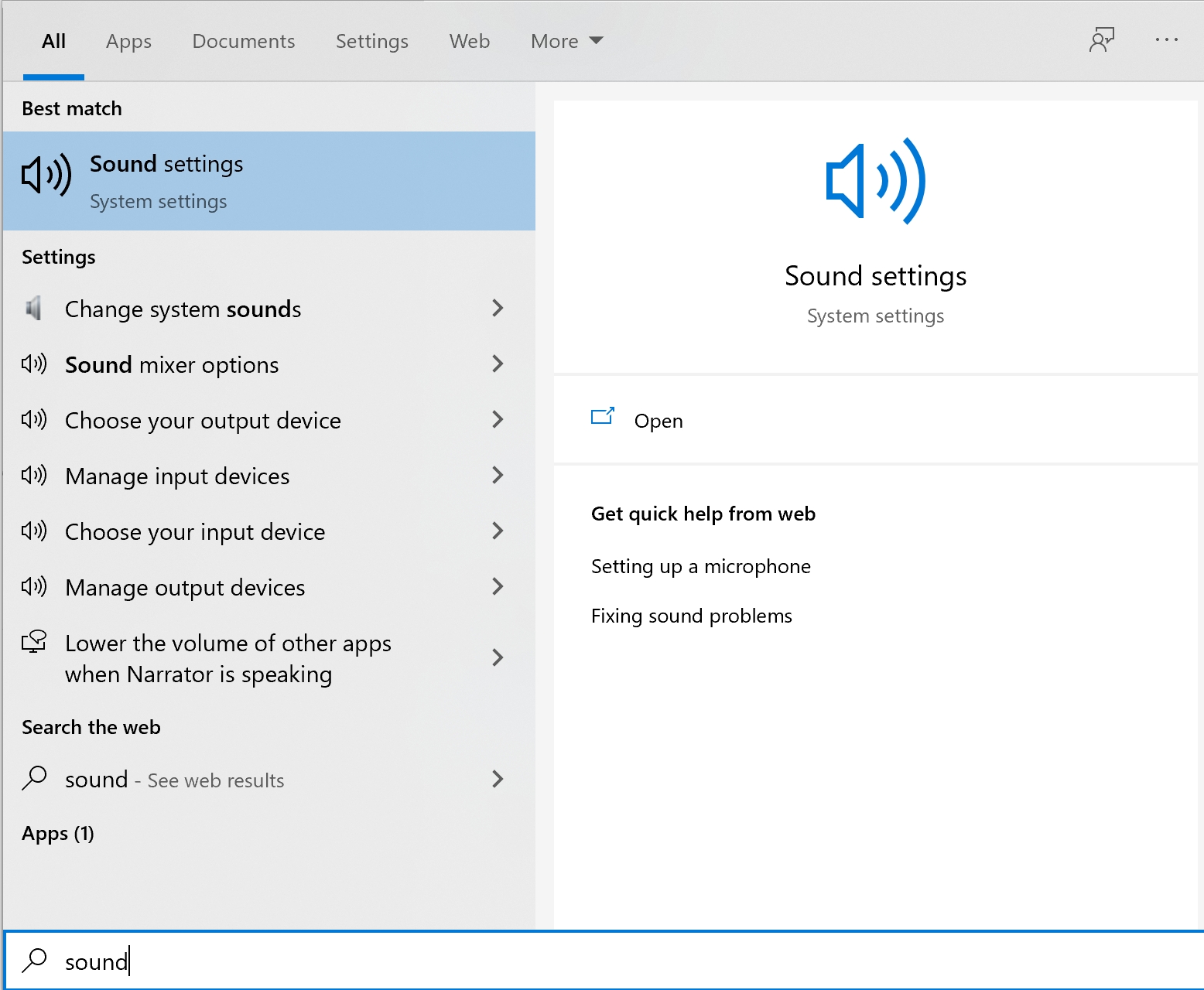
Under "choose your input device" make sure your microphone appears in the list. If you see "no input devices found", click the link titled "Manage Sound Devices."
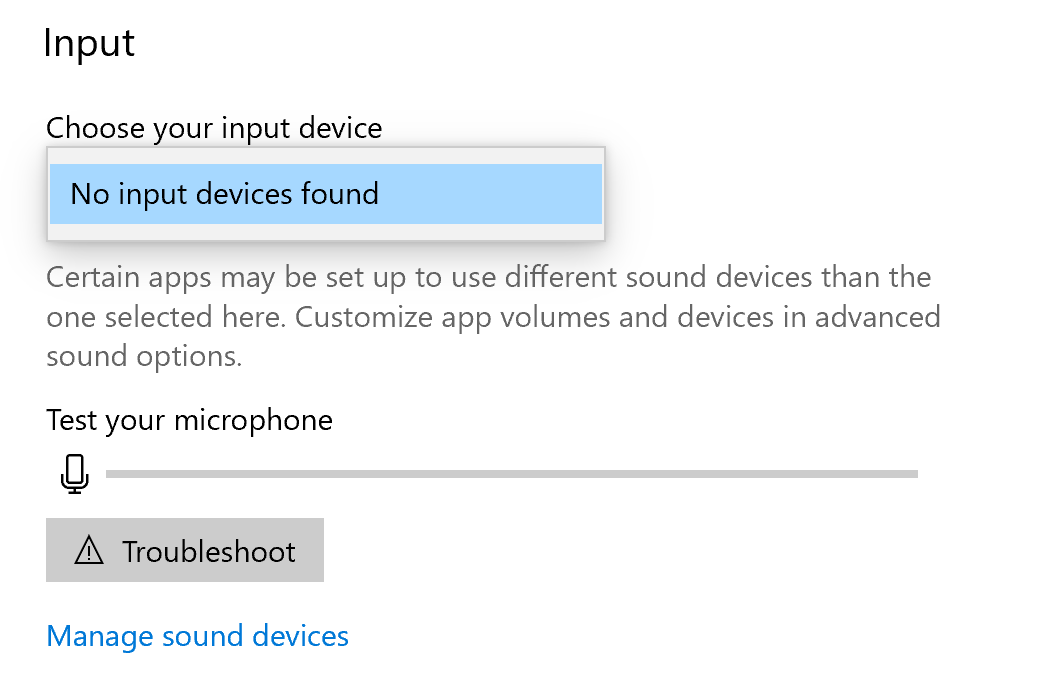
Under "Input Devices," look for your microphone. If your list is empty, like the photo below, then your computer's operating system is not detecting the presence of a microphone, and this is why LockDown Browser also cannot detect a microphone. The easiest way to fix this problem is to plug in a USB headset with microphone, or a USB webcam with a microphone.

However, if you do see your microphone listed, click on it and make sure it is enabled. If you see the "enable" button appear for your microphone, this means the mic is disabled. Click on the "enable" button to change this.
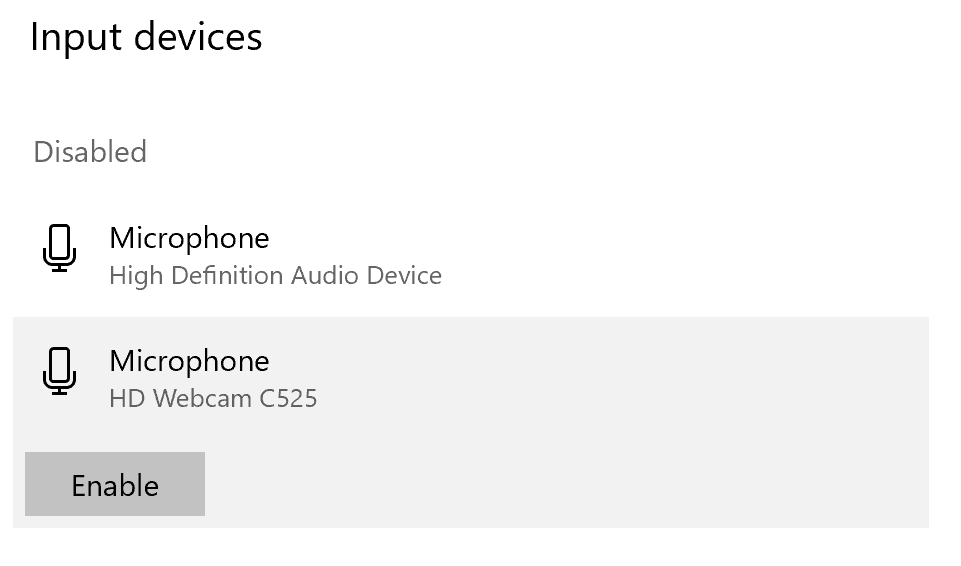
After doing this, the enabled mic should show up in your input device list.

For Mac users, go to System Preferences > Sound, and ensure that your microphone is showing up in the list of detected mics.
If it is not, you may need to plug in a USB headset with microphone, or a USB webcam with a microphone.

Original source: We are unable to detect a microphone with your computer | Respondus-Source-ID: 4409595689243 | Source-Updated: 2021-12-17T22:25:53Z
Comments
0 comments
Please sign in to leave a comment.