This article guides you through enabling pop-ups in the Chrome browser to use LockDown Browser for Chromebook with your Schoology exam. It explains how to adjust your Chrome settings to allow pop-ups either by toggling the setting or adding your specific Schoology URL to the allowed sites list, ensuring a smooth exam experience.
Summary: To use LockDown Browser for Chromebook with Schoology exams, pop-ups must be allowed for the Schoology site in the Chrome browser settings.
If you are trying to use LockDown Browser for Chromebook with your Schoology exam, you'll first need to allow pop-ups for your Schoology environment in the Chrome Browser.
To do this, in the Chrome browser, go to "Settings" > "Privacy and Security" > "Site Settings" > "Pop ups and redirects"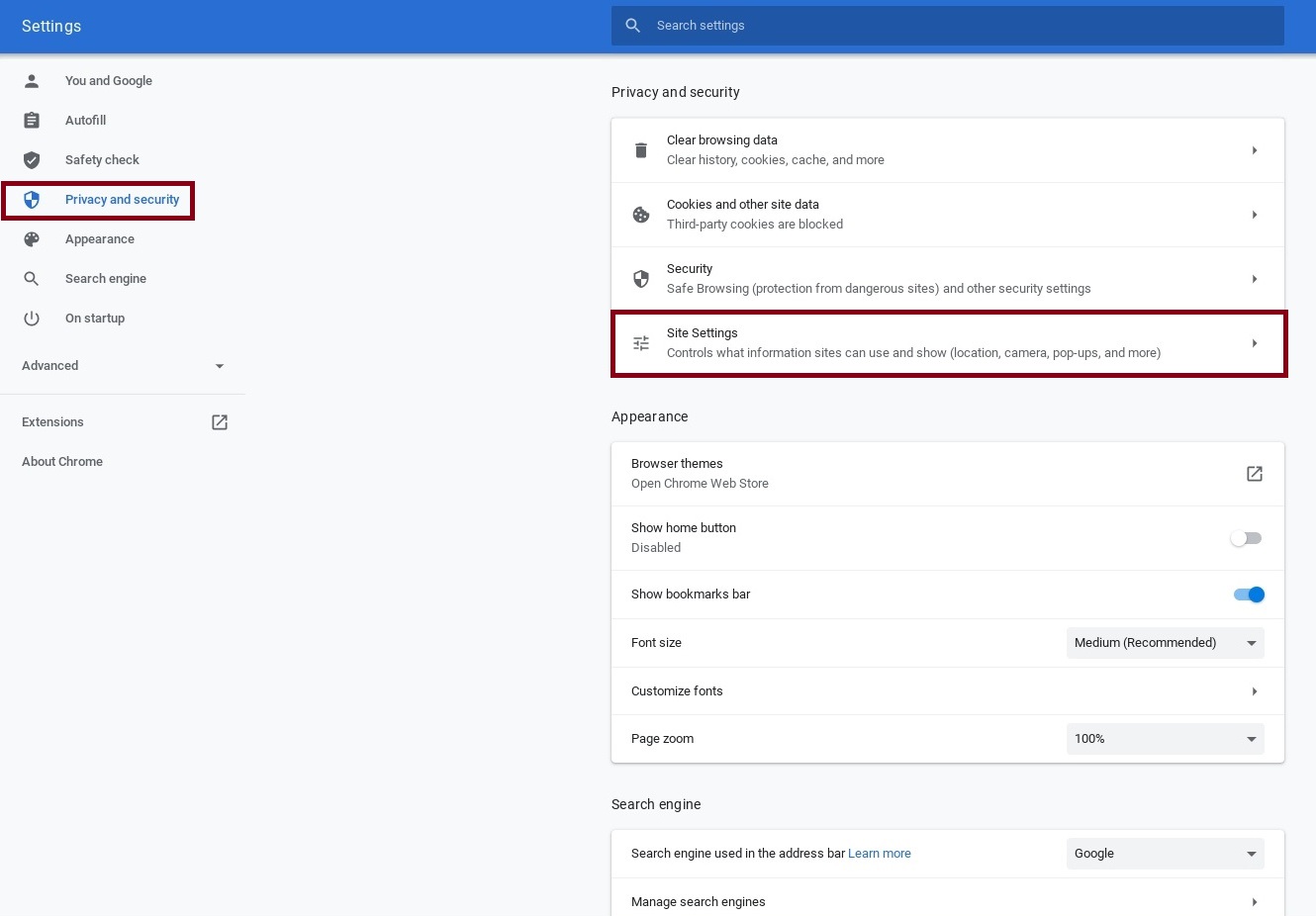
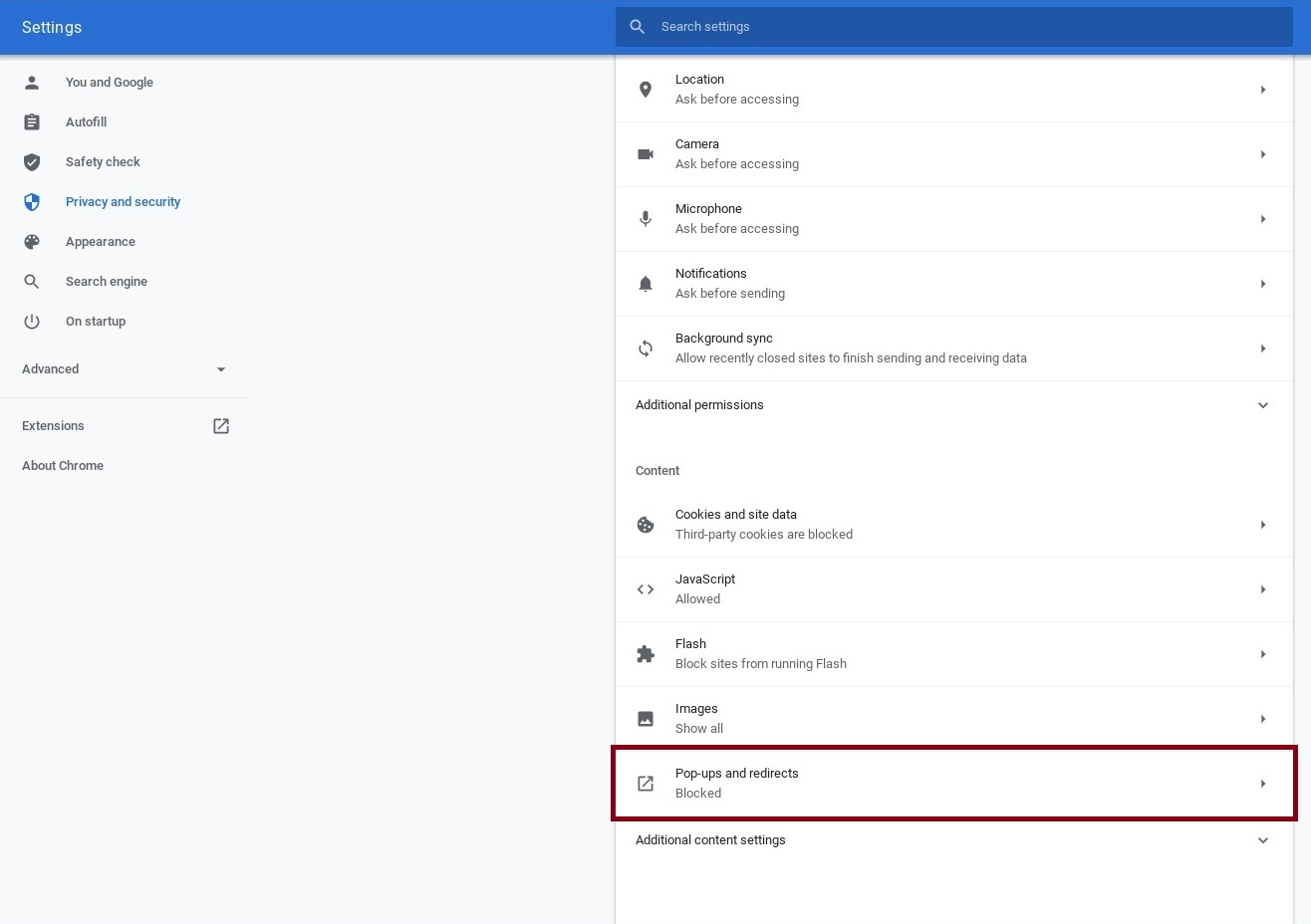
Move the toggle switch to the right to allow pop ups. 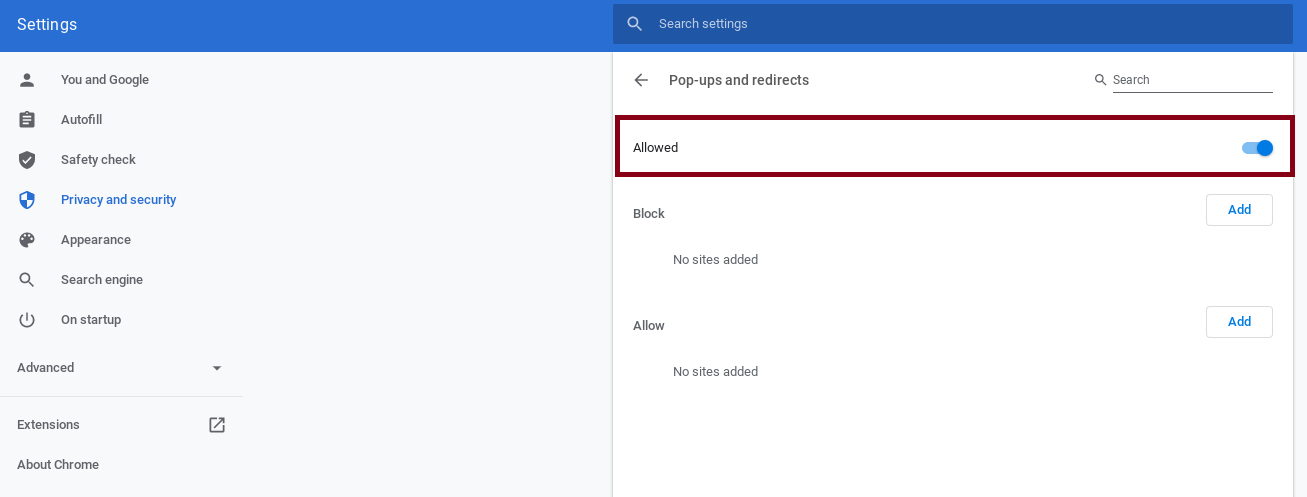
Alternatively, you can click the "add" button under the "Allow" header, and add your Schoology URL to the list of sites. The below specification is just an example. Your Schoology URL will be different.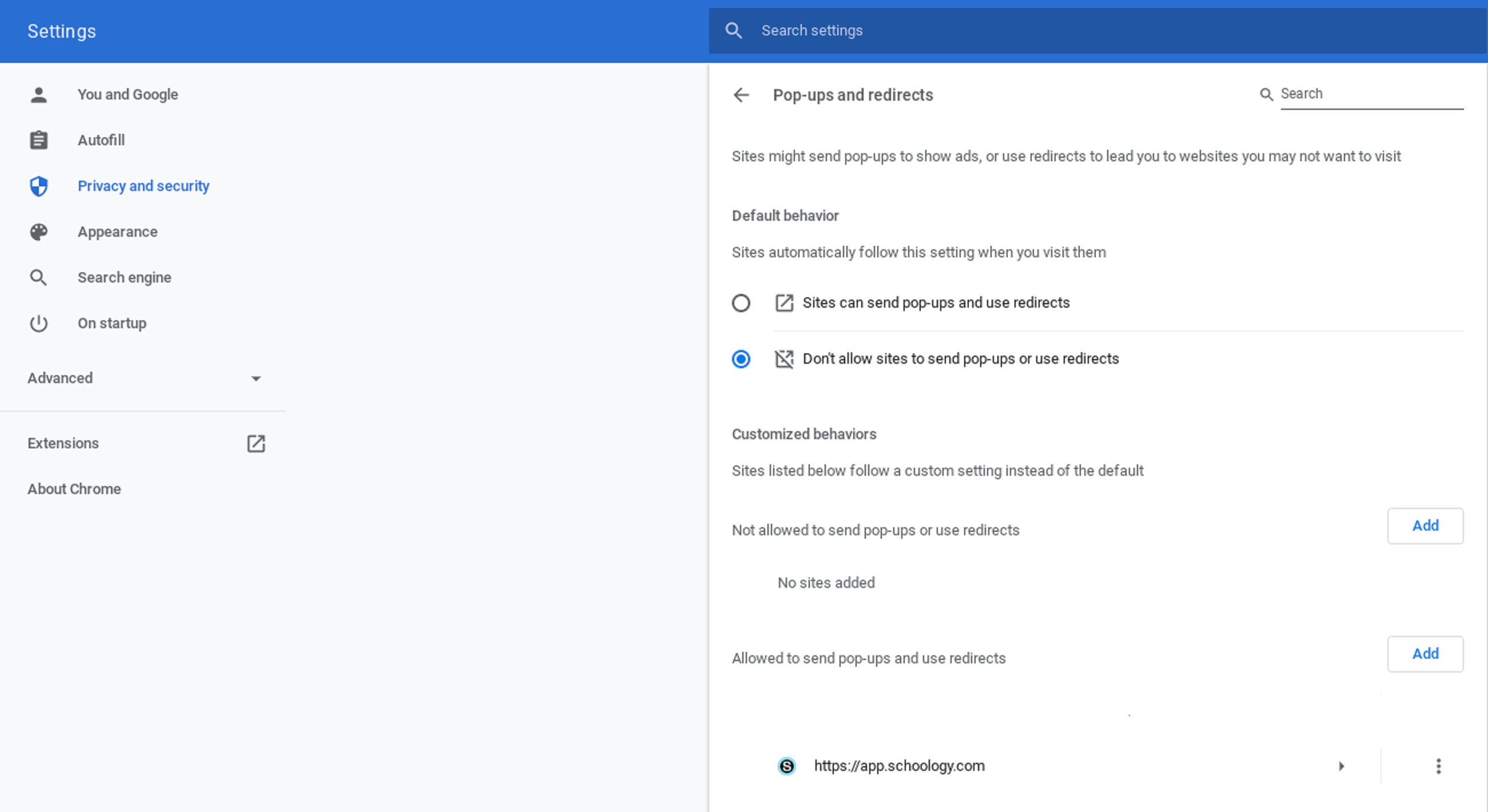
Original source: Schoology - Allowing Pop-ups in the Chrome Browser | Respondus-Source-ID: 4414663354395 | Source-Updated: 2022-01-05T19:28:43Z
Comments
0 comments
Please sign in to leave a comment.