If you are unable to proceed past the Blackboard password page while taking a LockDown Browser-required exam on a Chromebook, this article will help you troubleshoot the issue. It explains how to check if the LockDown Browser extension is installed and enabled in your Chrome browser, guiding you through the necessary steps to resolve the problem and continue with your exam.
Summary: If you are unable to proceed past the Blackboard password page on a Chromebook during a LockDown Browser-required exam, it may be because the LockDown Browser extension is either not installed or disabled in the Chrome browser.
* You haven't yet installed the LockDown Browser for Chromebook extension.
* You have the extension installed, but it has been disabled.
In your Chrome browser's URL window, type this: chrome://extensions
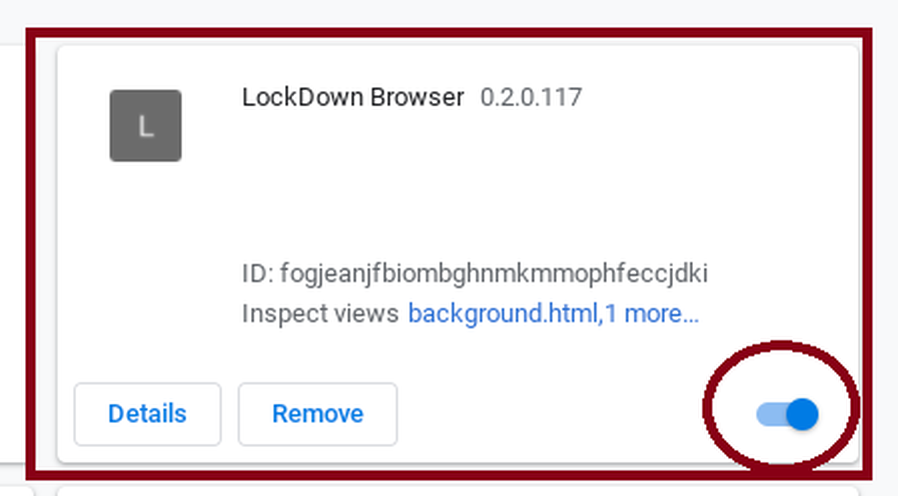
This will take you to the extensions page. If you do not see "LockDown Browser" in the extension list, then it's not installed. Please contact your institution's help desk for the download URL.
And you must also ensure the toggle bar is moved to the far right, which means it's enabled.
A sample photo of what this should look like is below.
Original source: Blackboard - Stuck on Blackboard password page | Respondus-Source-ID: 4409595718939 | Source-Updated: 2021-12-06T21:07:14Z
Comments
0 comments
Please sign in to leave a comment.