This article explains how to enable and use Mac Voice Control with LockDown Browser to assist with typing during exams. It guides you through activating Voice Control in your Mac’s system settings and using voice commands to input text within LockDown Browser. Please note that the voice-to-text feature currently does not work for essay questions in Blackboard’s text editor.
Summary: Mac Voice Control can be enabled and used to convert speech to text within text fields during a LockDown Browser required exam, but it does not currently work with essay type questions in Blackboard due to a known issue.
How to enable Voice Control:
- Click on the Apple button in the top left and select “System Preferences”.
- Go to “Accessibility” “Voice Control” and click on the box next to “Enable Voice Control.”
How to use:
- After enabling Voice Control, an overlay will appear in the lower right of the screen. You can temporarily mute the Voice Control so it does not listen for commands by clicking on the “Sleep” button on the overlay. You can then press ‘Wake up’ in the same place so that Voice Control listens for commands.

- To turn speech into text within a LockDown Browser required exam, select the text field, say ‘Show keyboard’, and wait for the keyboard to appear.
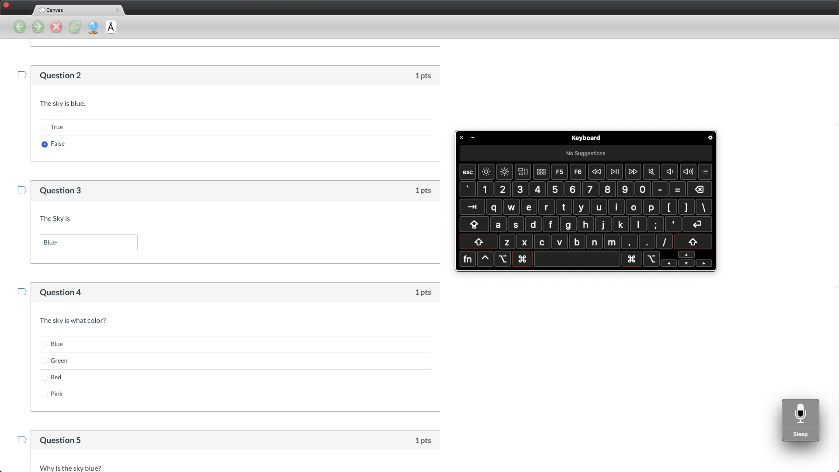
- After doing so, you can then talk to type out words into text fields within the LockDown Browser required exam.
Note: Currently the text editor does not permit the Mac Voice Control’s voice-to-text feature to work on essay type questions in Blackboard. This is a known issue outside of LockDown Browser.
Original source: Using Mac Voice Control with LockDown Browser | Respondus-Source-ID: 4409595696923 | Source-Updated: 2022-08-31T21:14:08Z
Comments
0 comments
Please sign in to leave a comment.