This article explains how to adjust the Accessibility Display preferences on your Mac to customize the color display settings for LockDown Browser for Mac. By changing these settings in your MacOS System Preferences, LockDown Browser will automatically apply the same display preferences, ensuring a consistent and accessible experience during exams.
Summary: LockDown Browser for Mac is compatible with the Accessibility Display preferences set in MacOS system preferences and will use the same display settings configured by the user.
LockDown Browser for Mac is compatible with Accessibility Display preferences you make in your MacOS system preferences.
To change these preferences, choose Apple menu > System Preferences > Accessibility, and then click the "Display" tab.
Set your desired display preferences, and LockDown Browser for Mac will also then use those same settings.
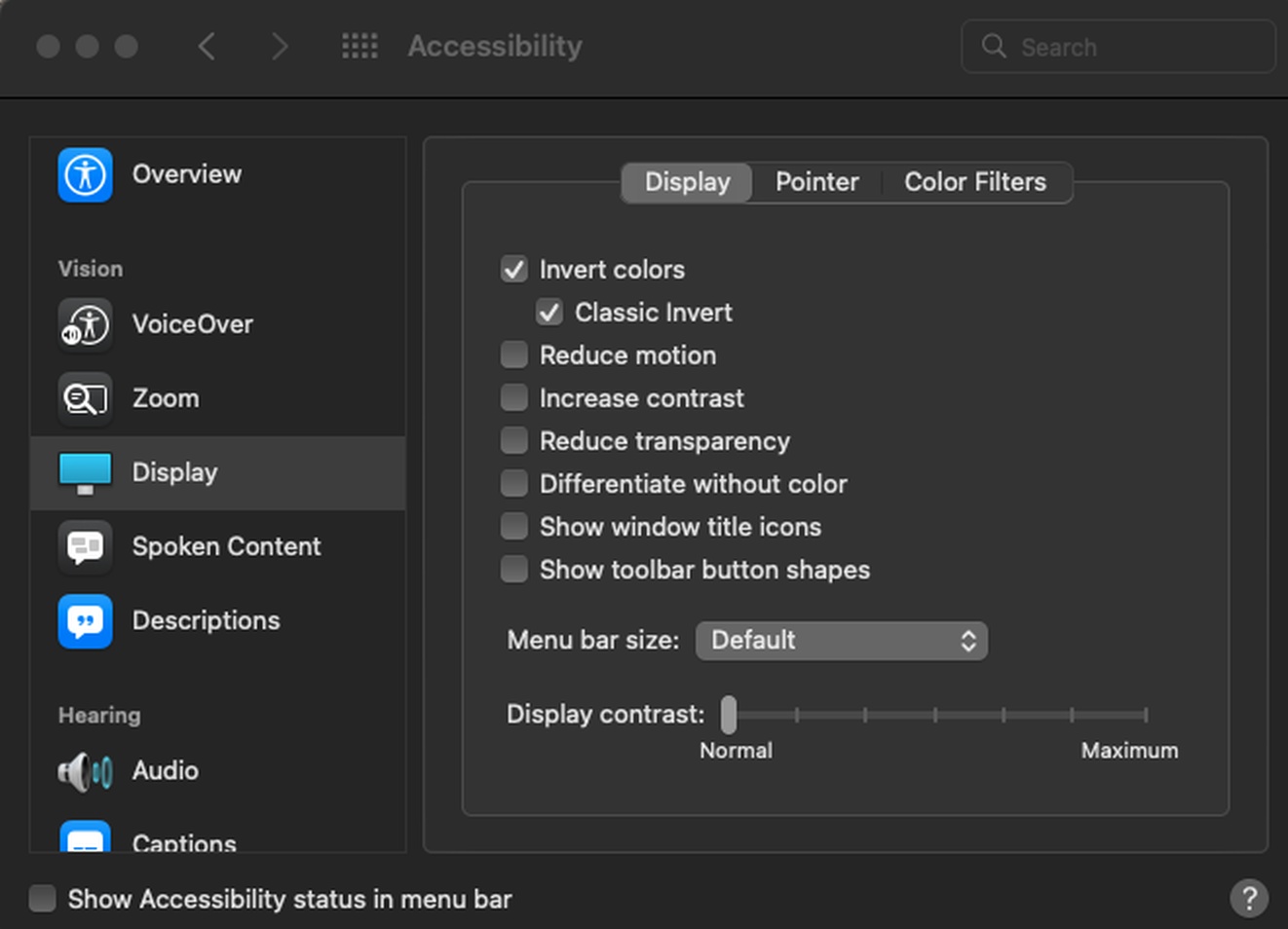
For more information on Mac Accessibility Display, please see this article.
Original source: LockDown Browser for Mac and color display | Respondus-Source-ID: 8099011487387 | Source-Updated: 2023-03-08T20:54:33Z
Comments
0 comments
Please sign in to leave a comment.