This article guides you through using ChromeOS dictation with the Respondus LockDown Browser Chromebook extension. It explains how to enable dictation in ChromeOS settings, how to activate voice typing during your exam, and how to disable the microphone when needed. Follow these steps to efficiently use speech-to-text functionality while taking secured exams on a Chromebook.
Summary: ChromeOS dictation can be used with the Respondus LockDown Browser Chromebook extension by enabling dictation in accessibility settings and activating the microphone with Search + d during an exam. The microphone cannot be accessed via the ChromeOS taskbar during a secured exam.
1. To use ChromeOS dictation with Respondus LockDown Browser, it must first be enabled:
- At the bottom right, select the time. Or press Alt + Shift + s.
- Select Settings
 .
- At the bottom, select Advanced.
- In the "Accessibility" section, select Manage accessibility features.
- Under "Keyboard and text input," turn on Enable dictation (speak to type).
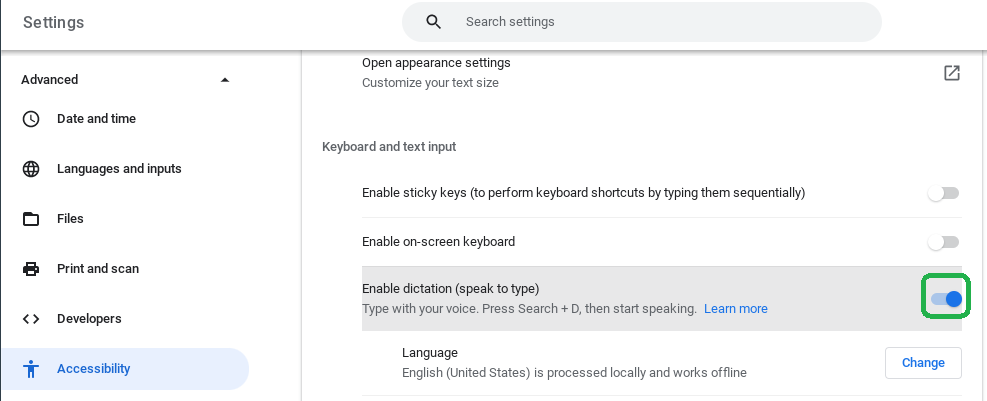
2. After enabling dictation, navigate to your exam
3. After your exam loads, press Search  + d and say what you want to type.
4. If you would like to disable the microphone so the text is no longer inserted with your voice, press Search + d again.
Note: The Speak  cannot be accessed via the ChromeOS taskbar during a secured exam. Students must use Search + d to activate the microphone for inserting text.
Original source: How to use ChromeOS Dictation with the Respondus LockDown Browser Chromebook Extension | Respondus-Source-ID: 4409604376347 | Source-Updated: 2022-09-21T17:31:07Z
Comments
0 comments
Please sign in to leave a comment.