This article guides Mac users through resolving issues when Siri is detected running during a LockDown Browser session. It explains how to stop Siri using the "kill these applications" button, manage user accounts, and adjust system settings to prevent Siri from interfering. Additionally, it provides steps to force quit the "siriknowledged" process if prompts persist, ensuring a smooth LockDown Browser experience.
Summary: If Siri is detected running during a LockDown Browser session on Mac, users must close it by clicking the "kill these applications" button or force quitting the "siriknowledged" process via Activity Monitor. Siri is not permitted during LockDown Browser sessions, and multiple steps can be taken to disable Siri and prevent it from running.
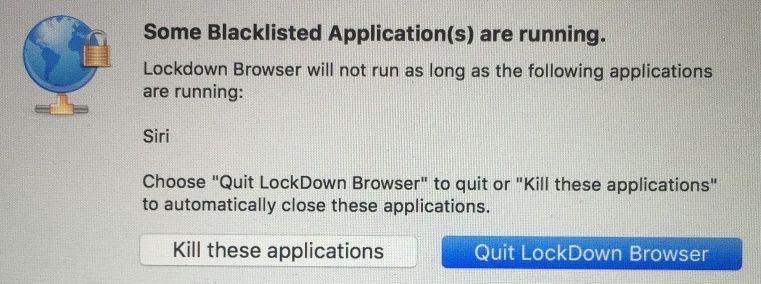
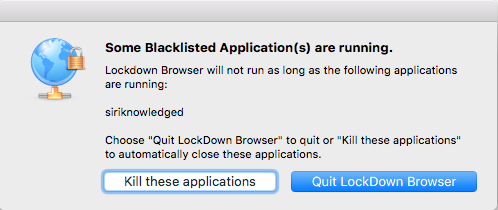
If either of the above messages is received when starting LockDown Browser for Mac, it indicates that Siri has been detected as running on the computer. As Siri is not permitted to run during a LockDown Browser session, it will be necessary for you to click on the "kill these applications" button.
If this button fails to close Siri, it indicates you might not be logged in as the primary user, who is also the administrator of the system. The "primary user" is the person who initially installed MacOS Sierra or MacOS High Sierra (or initially set up a new Mac).
The first thing to do is to try clicking the "Kill Applications" button repeatedly, as this has been shown to close down all running Siri processes.
If your Mac has two or more accounts, please verify the other accounts are not active by clicking on the user's name in the upper right side of the menu bar.
In the long term, we suggest the following steps:
1. Go to Mac-System Preferences-Siri-"Siri Suggestions & Privacy" to uncheck any selected apps in the list, click "Done".
2. Go to Mac-System Preferences-Siri to uncheck (disable) "Enable Ask Siri" and uncheck "Show Siri in menu bar"
3. Go to Mac-System Preferences-Users & Groups-"user"-"Login Items", highlight any items and click the "-" to remove them from automatically opening.
3. Close down all other apps.
4. Restart the the Mac.
5. Immediately go to Finder-Applications to start LockDown Browser (do not start any other app or do any searching in the Finder)
If the student still gets a prompt about "siriknowledged", they can follow the steps as seen in this screen capture: https://responduscom-my.sharepoint.com/:i:/g/personal/support_respondus_com/EcLxaYlEOS9PnePconHcZ-0B8Uk_-ib4eNqk9dgC7dyAEg?e=qXtRZb
1. Go to Finder-Applications-Utilities-Activity Monitor and start the app
2. In the View menu select "All Processes"
3. Locate and highlight "siriknowledged"
4. Click the "circle x" in the upper left.
5. Click "Force Quit" to close the process.
Original source: Siri detected as running on Mac | Respondus-Source-ID: 4409595654171 | Source-Updated: 2022-01-04T22:15:07Z
Comments
0 comments
Please sign in to leave a comment.