This article guides Mac users through resolving the "SSInvitationAgent" prompt that appears when starting LockDown Browser. It explains how to close related messaging apps like Apple Messages, use Activity Monitor to stop the SSInvitationAgent and SSMenuAgent processes, and successfully restart LockDown Browser to avoid conflicts with screen sharing components. Follow these steps to ensure LockDown Browser runs smoothly on your Mac.
Summary: The "SSInvitationAgent" is a component of applications like Apple Messages that provides screen sharing and is separate from Mac System Preferences sharing. To resolve warnings about "SSInvitationAgent" when starting LockDown Browser for Mac, users must close related messaging apps and terminate the "SSInvitationAgent" and "SSMenuAgent" processes via Activity Monitor.
The "SSInvitationAgent" is actually a component of other applications such as Apple Messages that also offers a screen sharing option, which is separate from the Mac-System Preferences-Sharing indicated in a warning when starting LockDown Browser for Mac.
If you see the prompt about "SSInvitationAgent":
1. Close LockDown Browser.
2. Verify you are signed out and have closed Apple Messages (iMessage) and other messaging apps.
3. Go to Finder-Applications-Utilities and start the "Activity Monitor".
4. Click on the "CPU" tab, click on the "Process Name" column to sort the list
5. Locate both "SSInvitationAgent" and "SSMenuAgent".
6. Highlight each process and click the "Stop" button as seen in this screen capture:
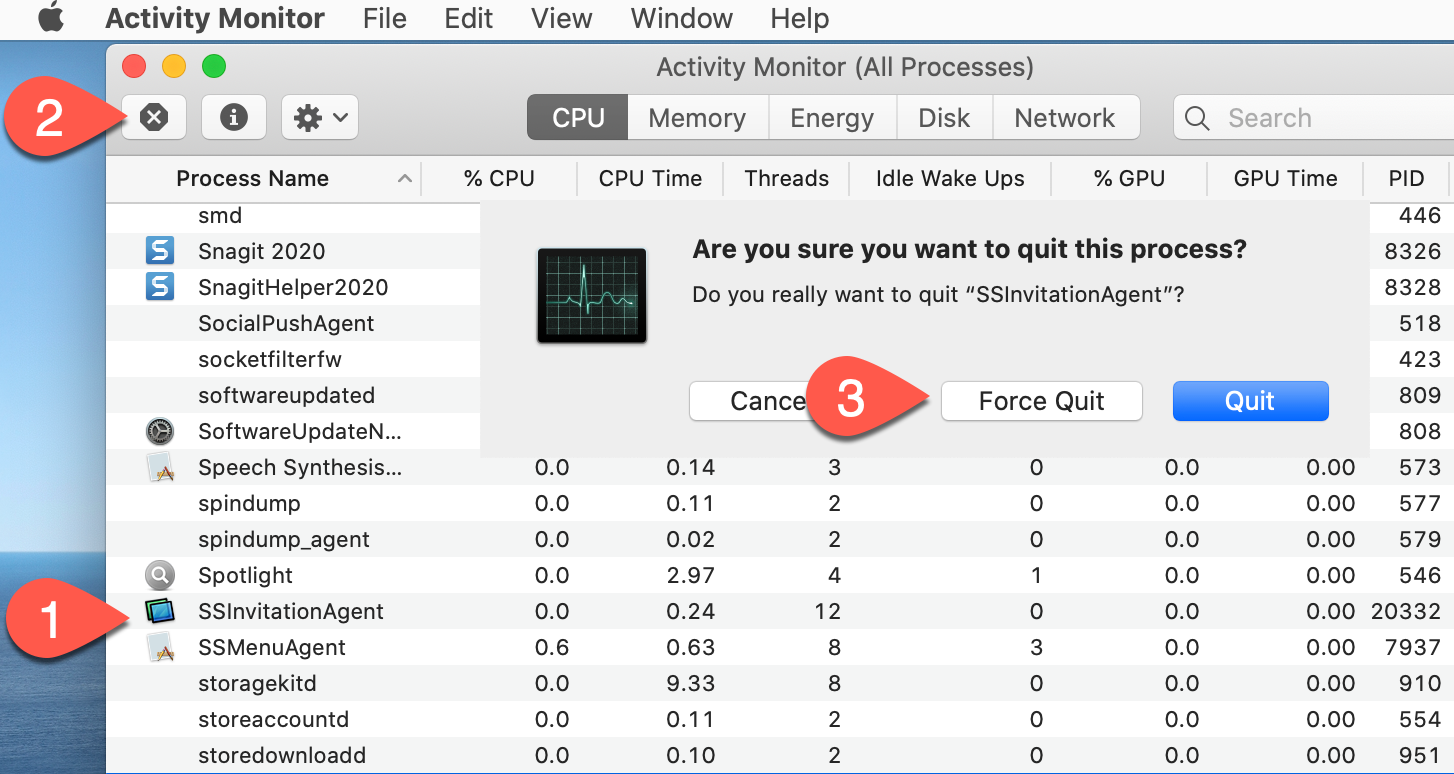
You may need to select "Force Quit" a couple of times before the process will finally stop.
7. Restart LockDown Browser for Mac.
Original source: You must close SSInvitationAgent in a Mac | Respondus-Source-ID: 4409607374875 | Source-Updated: 2023-03-09T22:32:21Z
Comments
0 comments
Please sign in to leave a comment.