This article explains how to restore your Mac's Touch Bar settings after using LockDown Browser. When you open LockDown Browser, any custom Touch Bar configurations are temporarily removed but will be restored once the session ends. To make these settings active again, you can either restart your Mac or adjust the Touch Bar settings in System Preferences under Keyboard.
Summary: When LockDown Browser is opened on a Mac, any custom Touch Bar settings are temporarily removed and restored after the session ends, but to reactivate them, the Mac must be restarted or the Touch Bar settings adjusted in System Preferences.
When you open LockDown Browser on your Mac, any custom settings you've made to the Touch Bar (such as adding Siri) will be removed temporarily. When the LockDown Browser session ends, those custom settings will be restored. However, to make those settings "live" again on your Mac, you'll need to do one of the following:
1) Restart the Mac computer.
or
2) Navigate to System Preferences -> Keyboard -> Keyboard tab
Select the pull down entry for ”Touch Bar shows” and check “Show Control Strip."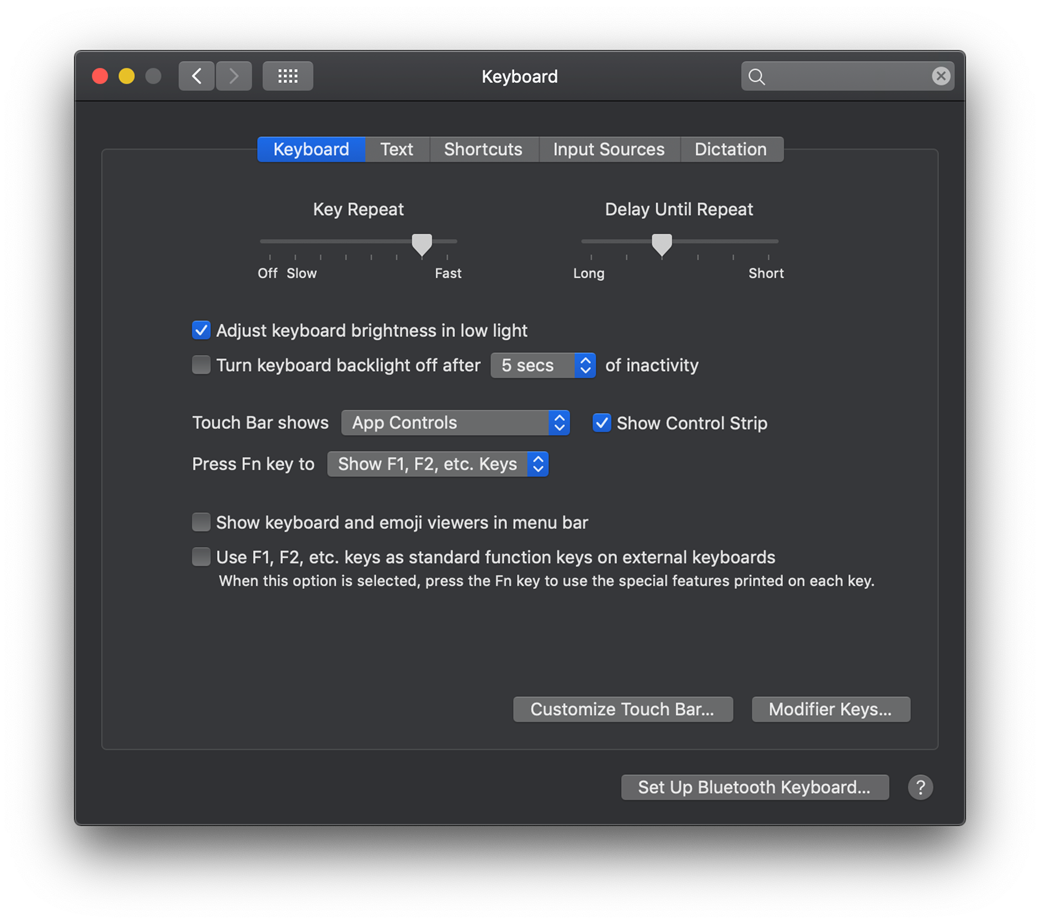
Original source: Restore the Mac Touch Bar | Respondus-Source-ID: 4409595670555 | Source-Updated: 2021-11-11T17:59:08Z
Comments
0 comments
Please sign in to leave a comment.