This article helps administrators resolve the "This tool can only be accessed by Instructors" error when accessing the LockDown Browser Dashboard. It explains how to verify and adjust instructor role permissions in the Brightspace IMS configuration to ensure the correct settings are applied for both default and custom instructor roles. Following these steps can restore proper access to the dashboard.
Summary: The error "This tool can only be accessed by Instructors" occurs when the instructor role lacks the required permissions in the Brightspace IMS configuration, and ensuring the correct permissions are set for default or custom instructor roles resolves the issue.
This error typically occurs if your instructor role does not have a check mark under the "Instructor" column in your Brightspace IMS configuration.
1. Login as an administrator to the Brightspace server, locate the Admin Tools menu, and select “IMS Configuration”.
2. The default Instructor role requires only the instructor permission checked.
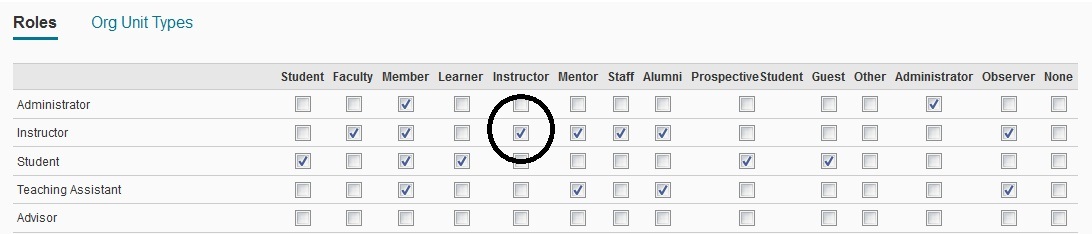
3. If a custom instructor role is defined on your server, ensure that this role has the same permissions checked.
If the error persists after making this change, verify that all the necessary permissions are set for the default and custom instructor roles as documented in the LockDown Browser Administrator Guide, under the section titled "Instructor Roles and Permissions for IMS Configuration."
Original source: Accessing the LockDown Browser Dashboard results in "This tool can only be accessed by Instructors" | Respondus-Source-ID: 4409607269019 | Source-Updated: 2021-12-06T21:09:25Z
Comments
0 comments
Please sign in to leave a comment.