This article helps Canvas users troubleshoot why the LockDown Browser LTI tool may not appear in their course menu. It explains common issues such as incorrect tool configuration, installation limited to a sub-account, and the tool being hidden in course navigation settings. Following these guidelines ensures the LockDown Browser is properly installed and visible for use in your courses.
Summary: If the LockDown Browser LTI tool is not appearing in a Canvas course, it may be due to incorrect configuration, installation only in a sub-account rather than the highest-level account, or the tool being hidden in the course navigation settings.
If you have installed the LockDown Browser Dashboard LTI tool to your Canvas instance, but still don't see it in the course menu, the following explanations are possible explanations:
1) The LTI tool is configured incorrectly. Please see the LockDown Browser Admin Guide for details on how to properly configure the tool. It must be installed "By URL" with the correct key and shared secret. Please see the example below. Your key and shared secret will be different than what is shown.
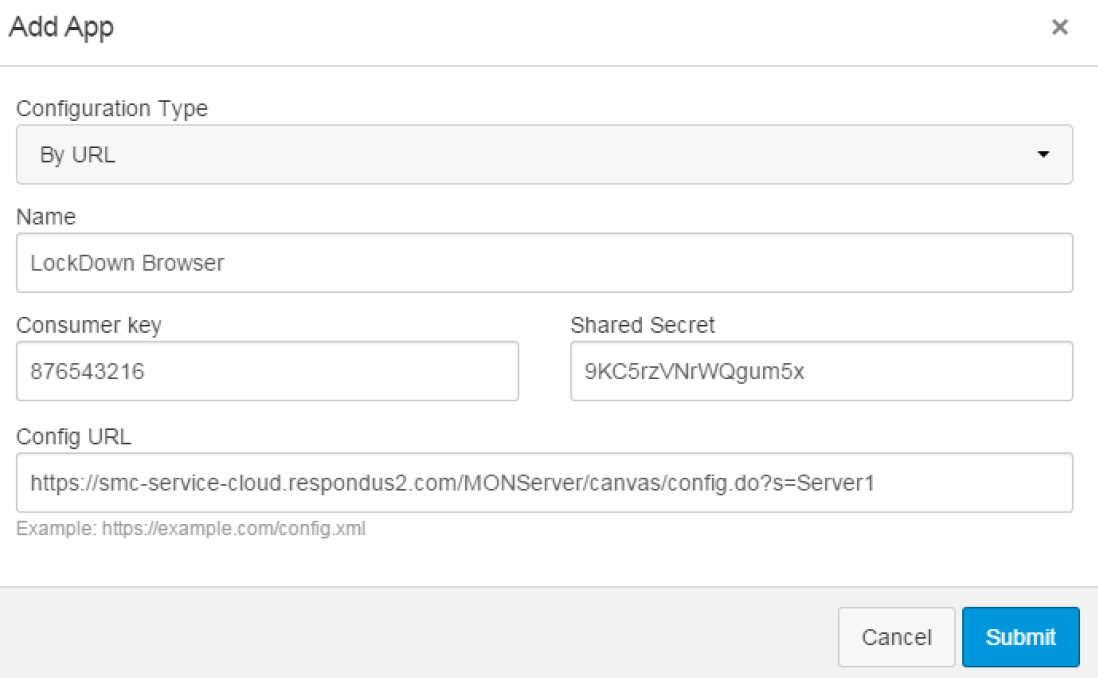
2) The LTI tool is installed only to a sub-account, and your course is not part of that account. We recommend installing the tool to the highest level account in your Canvas instance, rather than to a sub-account. This way, the LTI tool will be made available to all courses.
3) The tool is hidden from the course. You can check on this by navigating to the course, then click on "settings" in the lower left. On the next page, select the "Navigation" tab.
If you see the "LockDown Browser" tool residing in the lower category and marked as "disabled", then it will not appear in the course menu for instructors. You can drag it to the upper category to make it appear again. Be sure to click "save".
Original source: Canvas - The LockDown Browser LTI Tool is not appearing in my course | Respondus-Source-ID: 4409604294811 | Source-Updated: 2021-12-06T21:08:11Z
Comments
0 comments
Please sign in to leave a comment.